Enterprise
Cursor Cloud Agent Automations: Scheduled and Triggered Runs
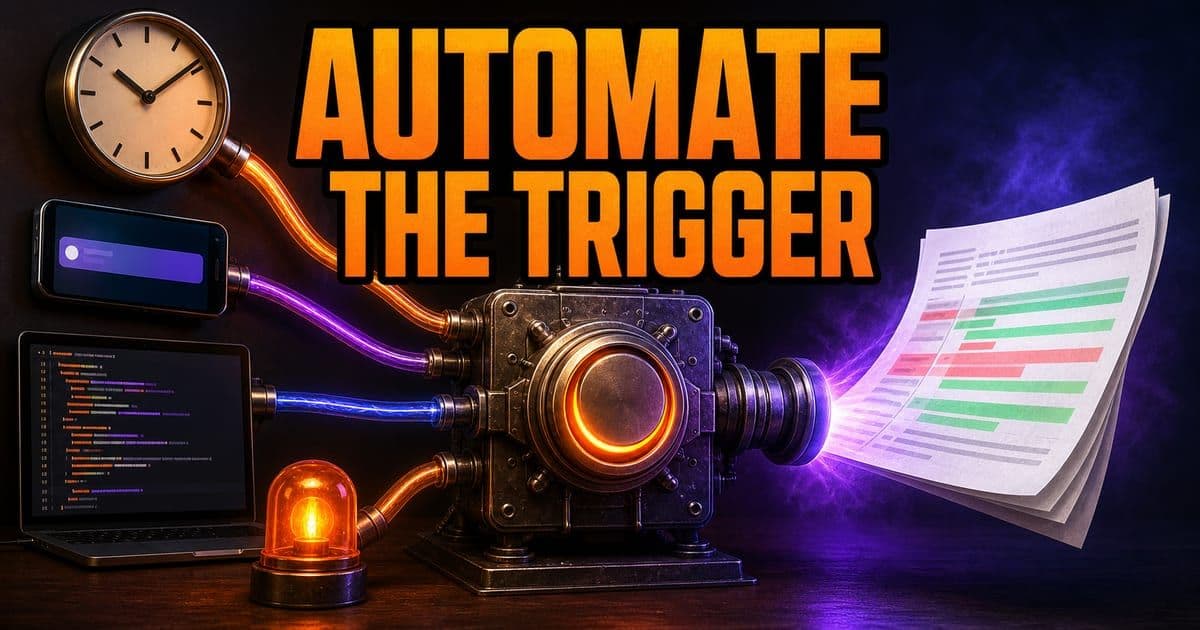
Cursor Automations run cloud agents in the background, either on a schedule or in response to events from GitHub, GitLab, Slack, webhooks, Linear, Sentry and PagerDuty. Each automation has a trigger that decides when it runs, a prompt that tells the agent what to do, optional tools such as Send to Slack or MCP, and a repository setting. Automations always run in Max Mode and are billed as cloud agent usage.
On this page
- What are Cursor Automations?
- How do I create an automation?
- What triggers can start an automation?
- How do Subscriptions differ from automation triggers?
- What tools can an automation use?
- How do repositories, permissions and identity work?
- How are automations billed, and how should I write prompts?
- Which marketplace automation templates are worth checking first?
What are Cursor Automations?
An automation is a cloud agent that Cursor runs for you in the background. You define when it runs, what it should do, and what it is allowed to touch. The docs list four parts you configure, and the marketplace ships templates you can start from rather than writing each one by hand.
- Trigger
- When it runs: a schedule, or an event from GitHub, GitLab, Slack, a webhook, Linear, Sentry or PagerDuty.
- Prompt
- Plain-language instructions for what the agent should check, change or produce.
- Tools
- Optional capabilities like Send to Slack, Comment on Pull Request or tools from an MCPModel Context Protocol. A standard that lets an AI agent pull in context from outside the repo, like Jira tickets or internal docs. Press Enter for the full definition. server.
- Repository
- Whether the agent needs one repository, multiple repositories, or no repository at all.
Cursor's own examples include reviewing recent PR commits for bugs, deep review for vulnerabilities, triaging bugs in Slack and summarizing changes to your codebase on a schedule. Each is a published Cursor Marketplace template you can adapt.
This is covered hands-on in Agent Mode Foundations — 6 short Units, free to read.
Rather do it than read about it? Run 11 interactive Cursor walkthroughs in a simulated editor. Free, no account needed.
How do I create an automation?
You can create an automation in the Agents WindowCursor's surface listing your agent runs; open a run to read its diff and search transcripts from the command palette. Press Enter for the full definition., at cursor.com/automations, with the /automate skill from a local agent session, or from a template in the Cursor Marketplace. The /automate skill lets you describe the workflow in plain language, and Cursor configures the triggers, instructions and tools for you. Whichever path you take, the docs describe the same five steps.
- 1Choose a trigger, for example every hour or when a pull request is opened.
- 2Write a prompt with instructions for the automation.
- 3Choose optional tools the agent can use, such as Send to Slack, Comment on Pull Request, or tools from MCPModel Context Protocol. A standard that lets an AI agent pull in context from outside the repo, like Jira tickets or internal docs. Press Enter for the full definition..
- 4Choose whether the automation needs a repository, multiple repositories, or no repository at all.
- 5Save and activate the automation.
What triggers can start an automation?
Triggers decide when an automation runs. An automation can have more than one trigger, and it runs when any trigger fires. The table below maps each trigger source to the events it responds to, so you can match a workflow to the right source before writing the prompt.
Read Active vs Inactive on cursor.com/automations
0:19 · narratedRead this demo as text
- Automations live on cursor.com slash automations — not in desktop Settings. Mine shows Active and Inactive. Know which triggers can fire before you widen the allow-list.
Practice next: Practice this yourself in the hands-on module.
Simulated Cursor 3.12 (macOS, light) — beta educational reconstruction, not the real product.
- Trigger source
- Scheduled
- Fires on
- A recurring schedule from preset options or a cron expression; runs may be delayed but never start before the indicated time
- Trigger source
- GitHub and GitLab
- Fires on
- Pull request opened, pushed, merged, commented, labeled or drafted; push to branch; CI completed; plus GitHub issue, review and workflow-run events
- Trigger source
- Slack
- Fires on
- New message in a public channel, an emoji reaction, or a new public channel created
- Trigger source
- Webhook
- Fires on
- A POST to a private HTTP endpoint generated for the automation
- Trigger source
- Linear
- Fires on
- Issue created, status changed, or end of cycle
- Trigger source
- Sentry
- Fires on
- Issue created, issue updated, or any issue event
- Trigger source
- PagerDuty
- Fires on
- Incident triggered, acknowledged, resolved, or any incident event
| Trigger source | Fires on |
|---|---|
| Scheduled | A recurring schedule from preset options or a cron expression; runs may be delayed but never start before the indicated time |
| GitHub and GitLab | Pull request opened, pushed, merged, commented, labeled or drafted; push to branch; CI completed; plus GitHub issue, review and workflow-run events |
| Slack | New message in a public channel, an emoji reaction, or a new public channel created |
| Webhook | A POST to a private HTTP endpoint generated for the automation |
| Linear | Issue created, status changed, or end of cycle |
| Sentry | Issue created, issue updated, or any issue event |
| PagerDuty | Incident triggered, acknowledged, resolved, or any incident event |
Source: Cursor docs - Cloud Agent Automations triggers.
For Slack triggers, only public channels are visible at this time, and without a message filter a new-message trigger fires only on top-level messages; add a keyword or regex filter to include threaded replies. Webhook triggers need the automation saved first, which generates the webhook URL to call and an API key for authentication.
Pull request triggers do not run on PRs opened from forks; those runs fail with a "Fork pull requests not supported" error because the branch only exists on the fork and running external code with the repo's permissions is not safe. The exception is Pull request merged triggers, which still run because they start from the merge commit. To work around it, push the branch to the repo itself and open the PR from there.
How do Subscriptions differ from automation triggers?
Cursor's August 19, 2026 changelog added a second way for a cloud agent to wake on an event, and it is not a new trigger type. With Subscriptions, the changelog says, the agent "subscribes to an event source (a thread or conversation) and wakes when something happens": it can monitor your PRs, watch a Slack thread, or run scheduled tasks. Subscriptions are available for cloud agents only, for now. The difference from an automation is where the decision lives. An automation is a standing rule you configure once at cursor.com/automations; a subscription is something a running agent takes on, either because it created a PR or because you asked it to keep watching.
- Feature
- Set up by
- Automation
- You, in the Automations UI, with triggers, repos and tools
- Subscription
- The agent itself: cloud agents automatically subscribe to PRs they create, and you can ask one to watch a Slack thread
- Feature
- Wakes on
- Automation
- Scheduled, GitHub/GitLab, Slack, webhook, Linear, Sentry and PagerDuty events (table above)
- Subscription
- Activity on the thread or conversation it subscribed to, or a schedule
- Feature
- Runs until
- Automation
- Each trigger fires a fresh run
- Subscription
- The changelog's framing is driving a PR to completion, fixing CI and addressing bot comments
- Feature
- Example
- Automation
- Triage failed GitHub Actions on every CI completion
- Subscription
- In Slack: "@cursor check back in an hour and keep going until that feedback is in"
| Feature | Automation | Subscription |
|---|---|---|
| Set up by | You, in the Automations UI, with triggers, repos and tools | The agent itself: cloud agents automatically subscribe to PRs they create, and you can ask one to watch a Slack thread |
| Wakes on | Scheduled, GitHub/GitLab, Slack, webhook, Linear, Sentry and PagerDuty events (table above) | Activity on the thread or conversation it subscribed to, or a schedule |
| Runs until | Each trigger fires a fresh run | The changelog's framing is driving a PR to completion, fixing CI and addressing bot comments |
| Example | Triage failed GitHub Actions on every CI completion | In Slack: "@cursor check back in an hour and keep going until that feedback is in" |
Automation rows from cursor.com/docs/cloud-agent/automations; subscription rows from the August 19, 2026 changelog. Cursor has not published a docs page for Subscriptions yet, so the right-hand column is limited to what the release note says.
Which one to reach for follows from that table. A recurring, repo-wide policy, such as triaging every failed workflow run, is an automation, because you want it to exist independently of any one agent session. Follow-through on a specific piece of work, such as getting one PR merged through two rounds of BugbotCursor's automated PR reviewer that posts inline findings and can push fix commits from isolated VMs. Press Enter for the full definition. comments, is a subscription, and for PRs the agent opens itself you get it without asking. The same release added /goal, a long-lived objective the agent works towards until it is fully complete, and Cursor's own suggestion is to pair it with /loop for recurring check-ins, which is the closest thing to an automation you can run from inside a chat. The capabilities page covers the rest of that release.
What tools can an automation use?
Automations include the same base set of tools as other cloud agents, plus extra capabilities you enable per automation. The tools below cover pull requests, Slack, memory, MCPModel Context Protocol. A standard that lets an AI agent pull in context from outside the repo, like Jira tickets or internal docs. Press Enter for the full definition. and computer use; some are on by default, and the GitHub and Slack tools carry permission notes worth reading before you turn them on.
- Tool
- Pull request creation
- What it does
- Lets a repo-backed automation open pull requests after making code changes; opened against the trigger's or environment's repositories
- Default
- On for every automation
- Tool
- Comment on pull request
- What it does
- Posts top-level and inline comments; with approvals enabled, can also approve, request changes and dismiss reviews
- Default
- Optional
- Tool
- Request reviewers
- What it does
- Requests reviewers on a target PR; can use git, memory and other tools to identify domain experts
- Default
- Optional
- Tool
- Send to Slack
- What it does
- Sends messages to a specific channel or any channel; allowing any channel also grants read access to discover public channels
- Default
- Optional
- Tool
- Read Slack channels
- What it does
- Read-only access to list and read messages from public Slack channels
- Default
- Optional
- Tool
- MCPModel Context Protocol. A standard that lets an AI agent pull in context from outside the repo, like Jira tickets or internal docs. Press Enter for the full definition. server
- What it does
- Connects an MCPModel Context Protocol. A standard that lets an AI agent pull in context from outside the repo, like Jira tickets or internal docs. Press Enter for the full definition. server, giving the agent access to every tool that server exposes
- Default
- Optional
- Tool
- Memories
- What it does
- Persistent named notes the agent can read and write across runs, stored as MEMORIES.md by default outside the working filesystem
- Default
- On, can be disabled
- Tool
- Computer use
- What it does
- Lets the agent operate a browser, produce screenshots or recordings, or use internal services
- Default
- On for every automation
| Tool | What it does | Default |
|---|---|---|
| Pull request creation | Lets a repo-backed automation open pull requests after making code changes; opened against the trigger's or environment's repositories | On for every automation |
| Comment on pull request | Posts top-level and inline comments; with approvals enabled, can also approve, request changes and dismiss reviews | Optional |
| Request reviewers | Requests reviewers on a target PR; can use git, memory and other tools to identify domain experts | Optional |
| Send to Slack | Sends messages to a specific channel or any channel; allowing any channel also grants read access to discover public channels | Optional |
| Read Slack channels | Read-only access to list and read messages from public Slack channels | Optional |
| MCPModel Context Protocol. A standard that lets an AI agent pull in context from outside the repo, like Jira tickets or internal docs. Press Enter for the full definition. server | Connects an MCPModel Context Protocol. A standard that lets an AI agent pull in context from outside the repo, like Jira tickets or internal docs. Press Enter for the full definition. server, giving the agent access to every tool that server exposes | Optional |
| Memories | Persistent named notes the agent can read and write across runs, stored as MEMORIES.md by default outside the working filesystem | On, can be disabled |
| Computer use | Lets the agent operate a browser, produce screenshots or recordings, or use internal services | On for every automation |
Source: Cursor docs - Cloud Agent Automations tools.
Memories persist across runs and should be used with caution if your automation handles untrusted input. Inputs may lead to misleading or malicious memories that unintentionally impact future automation runs. The agent can delete outdated memory files during runs, and you can view, edit or delete them from the tool configuration UI.
How do repositories, permissions and identity work?
Three settings decide what an automation can touch and who it acts as: the repository scope, the permission scope, and the identity it uses on external services. For Slack and cron triggers Cursor defaults to no repository; for GitHub and GitLab triggers, specifying a repo or multiple repos is required. The repository setting controls the codebase context for each run.
- No repository
- The agent does not clone code. For workflows that only need Slack, MCPModel Context Protocol. A standard that lets an AI agent pull in context from outside the repo, like Jira tickets or internal docs. Press Enter for the full definition., webhooks, Linear or PagerDuty. It cannot edit code or open pull requests.
- Single repository
- The agent works in one repository and branch. For reading, reviewing or changing code in one codebase.
- Multi-repo environment
- The agent works across the repositories in an environment, for tasks that span multiple codebases.
The permission scope controls who can view and manage the automation, and it also determines how usage is billed. Private means only you can manage it, though team admins can view and disable it. Team Visible means only you manage it but team members can view it and it still runs with your auth. Team Owned means team members can view it, only team admins can manage it, and it runs with the team's shared automations service account.
Promoting an automation from Private or Team Visible to Team Owned stops using your auth and starts using the team's shared automations service account. If it uses webhook triggers, regenerate its webhook API key after the scope change. If it uses MCPs or other integrations that rely on personal OAuth credentials, configure those for the team's service account instead. Only team admins can promote an automation to Team Owned.
On external services, the docs spell out which identity an automation acts as. GitHub comments, review approvals and reviewer requests run as cursor. Team-scoped automations open pull requests as cursor, while private automations open them as your GitHub account. Slack messages are sent as the Cursor bot.
How are automations billed, and how should I write prompts?
Automations create cloud agents and are billed based on cloud agent usage. They always run in Max Mode because they run as cloud agents, and there is no toggle to turn Max Mode off. Who pays follows the permission scope: Team Owned bills to the team's usage pool under a shared service account, while Private and Team Visible both bill the user who created the automation.
Prompts define what the agent should do, and the docs say to write them the same way you would write instructions for a cloud agent run. The tips below are Cursor's own guidance for getting reliable behavior out of an automation.
- Be specific about what the agent should check, change or produce.
- Reference the actions you enabled. You can at-mention tools or informally mention their names.
- Include decision rules for what to do in different cases.
- Set a quality bar for when the agent should open a pull request, comment, or do nothing.
- Describe the output format you want.
Which marketplace automation templates are worth checking first?
Use the marketplace templates as reference implementations before writing a custom automation from scratch. Two useful examples cover the review loop and CI loop: autofixing pull-request review comments and triaging failed GitHub Actions workflows.
Start from a Popular automation template
0:17 · narratedRead this demo as text
- Popular templates already carry a trigger shape — Scheduled into Send Slack. Start from one that matches the manual run you already trust, then tighten the prompt.
Practice next: Practice this yourself in the hands-on module.
Simulated Cursor 3.12 (macOS, light) — beta educational reconstruction, not the real product.
- Autofix PR review comments: a template for turning review feedback into an agent run that proposes a fix.
- Triage failed GitHub Actions: a template for investigating workflow failures and routing the result into a reviewable follow-up.
Frequently asked questions
Do automations run in Max Mode?
Yes. Automations always run in Max Mode because they run as cloud agents, and there is no toggle to turn Max Mode off. Usage is billed as cloud agent usage.
Can an automation run without a repository?
Yes. For triggers like Slack or cron schedules, Cursor defaults to no repository, which suits workflows that only need Slack, MCP, webhooks, Linear or PagerDuty. With no repository the agent cannot edit code or open pull requests. GitHub and GitLab triggers require specifying a repo or multiple repos.
Is a Subscription the same thing as an automation?
No. An automation is a standing rule you configure with triggers at cursor.com/automations. A Subscription, added in Cursor's August 19, 2026 changelog, is an event source a running cloud agent wakes on: cloud agents automatically subscribe to PRs they create and drive them to completion, fixing CI and addressing bot comments, and you can ask one to watch a Slack thread. Cursor says Subscriptions are available for cloud agents only, for now.
Why does my pull request trigger fail on forked PRs?
Pull request triggers do not run on PRs opened from forks. They fail with a "Fork pull requests not supported" error because the branch exists only on the fork and running external code with the repo's permissions is unsafe. Pull request merged triggers are the exception. To work around it, push the branch to the repo and open the PR from there.
Sources & last verified
- Cursor - Cloud Agent Automations
- Cursor - Cloud agents overview
- Cursor - Cloud agent capabilities
- Cursor - Models and pricing
- Cursor - MCP
- Cursor Marketplace - Autofix PR review comments
- Cursor Marketplace - Triage failed GitHub Actions
- Cursor changelog - Cloud Agents and Cursor Harness Improvements (Aug 19, 2026)
Cursor ships frequently. Last updated August 22, 2026.