Grok Bot guide
Grok Bot Apps: Connectors, Files and Recovery
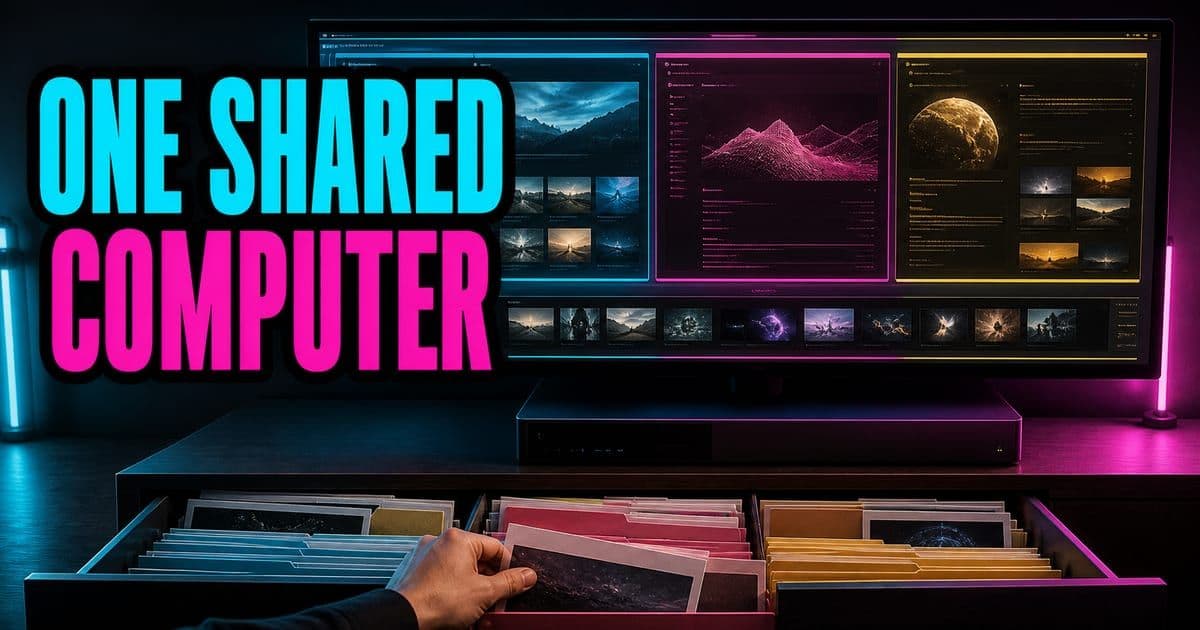
Grok Bot works from one persistent cloud computer assigned to your user account. Every Bot shares its files, browser sessions, and command-line credentials, though each gets a separate screen. Prefer connectors for supported services, use the browser for visual gaps, enter credentials through human takeover, and keep durable results in /workspace or the conversation.
On this page
- How does the shared Grok Bot computer work?
- Should Grok Bot use a connector, MCP server, or browser?
- How do you sign Grok Bot in to an app safely?
- How should Grok Bot handle files and reviewable results?
- Can Grok Bot access your local computer?
- How do you update, recover, or reset the Grok Bot computer?
- How do you clean up the Grok Bot computer after a project?
How does the shared Grok Bot computer work?
All Bots on one account use the same persistent cloud computer. Browser cookies, signed-in sessions, files, and command-line credentials cross Bot boundaries. Each Bot gets its own screen, so several can use browser and desktop tools in parallel, while one Bot can run only one computer-use task on its screen at a time.
- State
- Browser sessions
- Persists or is shared?
- Shared across the user's Bots
- What to do
- Sign in only to accounts appropriate for the whole roster
- State
- Files in
/workspace - Persists or is shared?
- Shared and intended for durable project material
- What to do
- Use named project folders and clear filenames
- State
- Command-line credentials
- Persists or is shared?
- Shared across the user's Bots
- What to do
- Use scoped credentials and remove them when work ends
- State
- Bot screens
- Persists or is shared?
- Separate parallel work surfaces
- What to do
- Do not treat them as security boundaries
- State
- Temporary directories and uncommitted app state
- Persists or is shared?
- Replaceable
- What to do
- Copy important results to
/workspaceor attach them to chat
| State | Persists or is shared? | What to do |
|---|---|---|
| Browser sessions | Shared across the user's Bots | Sign in only to accounts appropriate for the whole roster |
Files in /workspace | Shared and intended for durable project material | Use named project folders and clear filenames |
| Command-line credentials | Shared across the user's Bots | Use scoped credentials and remove them when work ends |
| Bot screens | Separate parallel work surfaces | Do not treat them as security boundaries |
| Temporary directories and uncommitted app state | Replaceable | Copy important results to /workspace or attach them to chat |
The computer belongs to the user account rather than to any single Bot.
Open Agent Computer from a conversation to watch clicks, typing, navigation, and status. You can leave the preview while work continues, and closing the Grok BotAn early AI teammate product from SpaceXAI and Cursor that works across apps on a persistent cloud computer and asks for approval on selected actions; launch materials describe it as beta, but Cursor says Beta Services terms do not apply. Press Enter for the full definition. app or laptop does not stop cloud work. If another instruction arrives while computer use is active, redirect the Bot rather than assuming the new task preempted the current page safely.
This exact topic is a hands-on Lesson: Grok Bot identity, routines and permissions — about 7 minutes, free to read.
Rather do it than read about it? Run 11 interactive Cursor walkthroughs in a simulated editor. Free, no account needed.
Should Grok Bot use a connector, MCP server, or browser?
Prefer a supported connector when it exposes the action you need. A connector gives the Bot structured tools and is usually less sensitive to a website moving a control. Use the browser for services without a connector, for a visual workflow the connector does not expose, or when a human must inspect a page.
- 1Open Settings, then Plugins, and browse available connectors.
- 2Choose Add and complete any browser authorization with the intended account.
- 3In chat, type
@to attach the connector to the task. - 4Type
/when the task should use a saved skill. - 5Review which connector tools are enabled and remove access that the workflow no longer needs.
Installed connectors are account-wide, so their availability is not isolated to one Bot. Team MCPModel Context Protocol. A standard that lets an AI agent pull in context from outside the repo, like Jira tickets or internal docs. Press Enter for the full definition. policy can disable all commands, allow or deny servers, prevent member-added servers, or require addresses on a network allowlist. A pluginA Cursor marketplace package that bundles MCP servers and skills (sometimes sub-agents and hooks); one click installs all of it into your Cursor instance. Press Enter for the full definition. marked Disabled by team admin cannot be authenticated around that policy.
Computer use fills integration gaps, and it brings webpage ambiguity with it. Ask the Bot to report the account, target, and proposed values before a consequential click. A connector's structured call and a browser button may reach the same outcome, but the connector is usually easier to review.
How do you sign Grok Bot in to an app safely?
Take control for passwords, passkeys, two-factor authentication, CAPTCHAs, payment confirmation, and any site that requires a human. Complete only the blocked step, confirm the signed-in account, then return control and ask the Bot to continue.
- Do not paste passwords or one-time codes into ordinary chat.
- Use a secure secret request only for its supported connection; it is not a general password manager.
- Ask the Bot to pause and notify you when a site requests verification again.
- Sign out when the account should no longer be available to any Bot on the computer.
- Revoke connector authorization in the source service for a complete access removal.
Browser sessions persist, so one successful sign-in usually serves later tasks and other Bots. Some websites expire sessions, change network checks, or demand verification for sensitive actions. Repeated authentication is not always a Grok BotAn early AI teammate product from SpaceXAI and Cursor that works across apps on a persistent cloud computer and asks for approval on selected actions; launch materials describe it as beta, but Cursor says Beta Services terms do not apply. Press Enter for the full definition. fault, and the product should not try to bypass it.
How should Grok Bot handle files and reviewable results?
Attach source material and name its role in the request. Desktop accepts up to six attachments at once. Documents, images, and audio can be up to 25 MB each, while video can be up to 200 MB. Encrypted, damaged, unusually formatted, or large files may still be unreadable.
- Result type
- Document
- Acceptance detail to request
- Headings, source links, and unresolved questions
- Result type
- Spreadsheet
- Acceptance detail to request
- Defined columns, formulas, totals, and source references
- Result type
- Slide deck
- Acceptance detail to request
- Speaker notes and links for claims
- Result type
- Evidence folder
- Acceptance detail to request
- Screenshots, logs, timestamps, and input filenames
- Result type
- Draft message
- Acceptance detail to request
- Visible recipient and confirmation that it was not sent
| Result type | Acceptance detail to request |
|---|---|
| Document | Headings, source links, and unresolved questions |
| Spreadsheet | Defined columns, formulas, totals, and source references |
| Slide deck | Speaker notes and links for claims |
| Evidence folder | Screenshots, logs, timestamps, and input filenames |
| Draft message | Visible recipient and confirmation that it was not sent |
A consequential result should separate facts, inferences, completed actions, pending approvals, and unresolved questions.
Files and tool results appear as cards in the conversation. Ask the Bot to revise the existing artifact instead of producing disconnected copies. For current data, preserve a source link or export as well as a screenshot. A screenshot proves what one screen showed, not that the value is still current tomorrow.
Bots can hand files through /workspace, but the final conversation should still contain the result or a clear link. Intermediate material that exists only on the computer is harder to find after a handoff and easier to lose during recovery.
Can Grok Bot access your local computer?
Cloud-computer access and local-computer access are separate. Under Settings, General, Agent, Execution on Local Computer, the personal choices are Always require approval, always allowed, or never allowed. The documented default is Ask every time.
Use Never allowed unless one Bot has a specific reason to run commands or read files on the Mac or Windows machine in front of you. This does not stop work on the cloud computer. When local execution is enabled, review the exact command shown in the approval card rather than inferring it from the conversation summary.
Personal Auto-review and local settings do not form an account-synchronized policy across every desktop. Verify a second installation separately. The team docs describe a future admin ceiling for local execution, which means it should not be listed as a current organization control.
How do you update, recover, or reset the Grok Bot computer?
Start with the least destructive option. Reopen or retry the conversation, restart the app, then use Recover computer when the unreachable state offers it. Update Agent Computer rebuilds with the latest image while preserving durable state. Reset Agent Computer returns to the most recent durable snapshot and can discard recent unsynced work.
- 1Retry or reopen the conversation and inspect whether setup progress is still moving.
- 2Restart Grok BotAn early AI teammate product from SpaceXAI and Cursor that works across apps on a persistent cloud computer and asks for approval on selected actions; launch materials describe it as beta, but Cursor says Beta Services terms do not apply. Press Enter for the full definition. and check for a desktop app update.
- 3Use Recover Agent Computer when offered for an unreachable machine.
- 4Use Update Agent Computer if recovery is unavailable or fails.
- 5Wait for the replacement computer, then verify the needed files and logins.
- 6Use Reset Agent Computer only when you accept losing recent or unsynced work.
The app and Agent Computer update separately. Updating the desktop app does not reset the cloud computer. Before recovery, let active work finish when possible and copy important results into durable storage or the conversation.
How do you clean up the Grok Bot computer after a project?
Clean up routines, source access, and files independently. Pause scheduled work first, sign out of browser sessions, uninstall connectors, revoke source-side authorization, and remove sensitive material from /workspace. Deleting the Bot does not complete those steps.
The source system is the final authority on access. Read back its connected-app or session list after revocation, especially for finance, production, or customer-data tools. A hidden Bot can still have routines, and a deleted Bot can leave shared files or browser sessions behind.
For approval and privacy boundaries around the same computer, continue with Grok BotAn early AI teammate product from SpaceXAI and Cursor that works across apps on a persistent cloud computer and asks for approval on selected actions; launch materials describe it as beta, but Cursor says Beta Services terms do not apply. Press Enter for the full definition. security and privacy. For repeated work that reuses these sessions, use the skills and routines guide.
Frequently asked questions
Does every Grok Bot get a separate computer?
No. One user gets one persistent cloud computer shared by all of that user's Bots. Separate screens support parallel work but do not isolate files, sessions, or credentials.
Should Grok Bot use a connector or the browser?
Prefer a supported connector for structured actions and use the browser for visual workflows or services without a suitable connector. Team MCP policy can restrict which servers are available.
Where should Grok Bot save durable files?
Use clear project folders under /workspace and put the final artifact or a direct link in the conversation. Temporary folders, manual package installs, and unsynced app state are replaceable.
Can Grok Bot read files on my laptop?
Only when local execution is enabled under your desktop policy. The default is Ask every time, and SpaceXAI recommends Never allowed unless a task specifically needs local files or commands.
Does Reset Agent Computer preserve all work?
No. Reset returns to the most recent durable snapshot and can lose recent or unsynced work. Try Retry, app restart, Recover, and Update Agent Computer first.
Does deleting a Bot sign it out of websites?
No. Browser sessions and files belong to the shared computer. Sign out, revoke source authorization, remove files, and pause routines separately.
Sources & last verified
- SpaceXAI Docs: Use the computer and apps
- SpaceXAI Docs: Files and results
- SpaceXAI Docs: Approvals, security, and privacy
- SpaceXAI Docs: Troubleshooting
- SpaceXAI Docs: Grok Bot for teams and enterprises
Cursor ships frequently. Facts verified against primary sources on August 14, 2026.