Cursor Agents
Cursor for iPad: Setup, PR Review and Limits
Cursor for iPad is the iOS app adapted to the larger screen. It starts and directs cloud agents, keeps several chats visible, places a pull request review beside a chat, shows full-width diffs, and accepts point or Apple Pencil markup. It is available on paid plans, but it is an agent control and review surface instead of a full IDE.
On this page
What can Cursor do on an iPad?
Cursor for iPadCursor's larger-screen mobile app for starting and directing cloud agents, reviewing full pull requests and marking up changes; it is not a full local IDE. Press Enter for the full definition. uses the same agent backend as cursor.com/agents and the desktop Agents WindowCursor's surface listing your agent runs; open a run to read its diff and search transcripts from the command palette. Press Enter for the full definition.. An agent started on the tablet appears on the other surfaces, and an existing cloud agent appears in the mobile inbox. You can choose a repository and branch, send a task, follow the live transcript, reply while it runs, and review the result without keeping the iPad awake.
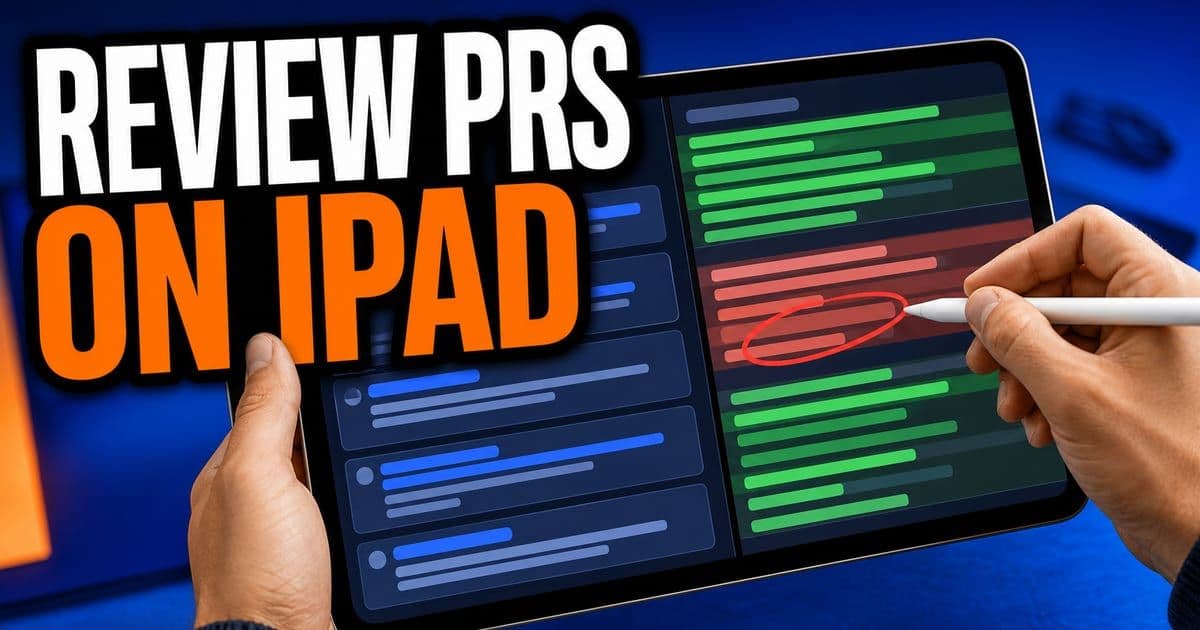
The July 29 release rebuilt the layout around the larger screen. Chats stay pinned in a sidebar, a review can sit beside the active conversation, and diffs use the full available width. That changes the tablet from a notification endpoint into a workable review station, especially when several cloud agents are moving at once.
- Operating system
- iPadOS 26.0 or later
- Language
- English
- Plans
- Start, Pro, Pro+, Ultra, Teams, and Enterprise
- Agent runtime
- Cloud machine, Self-Hosted Pool, or My Machines when available
- Source control
- GitHub, GitLab, Bitbucket, and Azure DevOps support across the mobile release
Cursor mobile documentation and iPad changelog, checked August 14, 2026.
This exact topic is a hands-on Lesson: Compile 2026 and the current release map — about 6 minutes, free to read.
Rather do it than read about it? Run 11 interactive Cursor walkthroughs in a simulated editor. Free, no account needed.
How do you set up Cursor on iPad?
Install Cursor from the App Store and sign in with the same account used on desktop or web. Organization SSOSingle Sign-On. One company login (usually via SAML or OIDC) instead of a separate password per tool. Press Enter for the full definition. still applies. Pick a repository and branch, then start with a task whose result you can review from a diff. The agent runs in its selected environment, so the tablet does not need a local checkout or a terminal session of its own.
- 1Download Cursor from the App Store on an iPad running iPadOS 26.0 or later.
- 2Sign in and complete organization SSOSingle Sign-On. One company login (usually via SAML or OIDC) instead of a separate password per tool. Press Enter for the full definition. if your account requires it.
- 3Choose the repository, branch, model, and available worker for the run.
- 4Describe a bounded task and include the check that should prove completion.
- 5Follow the run in the sidebar, then open its pull request or diff for review.
A cloud environment must already contain what the project needs. Secrets, environment setup, and source control connections live on the web, not in the iPad app. If the first run cannot install or test the project, fix that setup at cursor.com before retrying the task. Repeated prompting from the tablet will not supply a missing credential or build service.
How does pull request review work on iPad?
The mobile review covers the full pull request rather than only an agent summary. You can inspect diffs, commits, deployments, comments, checks, and approvals; add or change reviewers; and ask the agent to resolve a comment or fix a failed check. Cursor also documents actions such as squash merge, mark ready, update branch, toggle auto-merge, publish, or close.
Use split screen to keep the review beside the chat. That pairing is the useful part, in my view, because a suspicious hunk can become a precise follow-up without losing the surrounding conversation. The app also handles multi-PR sessions, so when one chat produces several pull requests you can open each one instead of seeing only the latest result.
- Review need
- Understand the change
- iPad action
- Read full-width file diffs and commits
- Review need
- Check delivery state
- iPad action
- Inspect checks, deployments, approvals, and comments
- Review need
- Request a correction
- iPad action
- Prompt the agent from the review context
- Review need
- Coordinate reviewers
- iPad action
- Add or change reviewers and read their comments
- Review need
- Finish the PR
- iPad action
- Use the available merge, readiness, branch, publish, or close actions
| Review need | iPad action |
|---|---|
| Understand the change | Read full-width file diffs and commits |
| Check delivery state | Inspect checks, deployments, approvals, and comments |
| Request a correction | Prompt the agent from the review context |
| Coordinate reviewers | Add or change reviewers and read their comments |
| Finish the PR | Use the available merge, readiness, branch, publish, or close actions |
Repository permissions and branch protections still decide which actions succeed.
The presence of a merge button does not replace repository policy. Required approvals, protected branches, and failing checks can still block the action. Keep the same evidence standard you use on desktop: read the actual diff, confirm the automated checks, and resolve the review state before merging from a smaller screen.
How do Apple Pencil and visual prompts work in Cursor?
Attach a screenshot, tap the exact point that needs attention, or draw on the image with Apple Pencil. The larger iPad canvas makes those marks easier to place than on a phone. Cursor also supports photos, camera captures, files, and voice dictation, so a visual bug can be described while its location stays attached to the prompt.
Treat the markup as context, not acceptance evidence. A circle can show where a button overlaps, but it does not state the expected responsive behavior, keyboard state, or test condition. Pair the mark with one sentence describing the desired result and ask for a screenshot or deployed artifact after the change when visual correctness matters.
What can you not do in the Cursor iPad app?
The app is not a full IDE or an administration console. It shows changed files in a diff rather than a complete editor, terminal, and file browser. Environment secrets, MCPModel Context Protocol. A standard that lets an AI agent pull in context from outside the repo, like Jira tickets or internal docs. Press Enter for the full definition. server setup, source control connections, rules, skills, automations, billing, usage, and most admin settings remain on the web. Mobile lets you choose an existing MCP server for a run, but not add or manage the server itself.
Cursor for iOS is still labeled beta. It relies on Cloud AgentsAgents that run in a Cursor-managed virtual machine, check out the repo, do the work and open a pull request, then shut down, with no load on your laptop. Press Enter for the full definition. and therefore needs cloud data storage. Accounts on Legacy Privacy ModeCursor's setting that guarantees code data is not used for training by Cursor or its model providers, and that an admin can enforce org-wide; data-retention terms are a separate, contractual layer. Press Enter for the full definition. must switch to Privacy Mode before they can start mobile agents, and Cursor says that change cannot be reversed. Cursor does not train on your code, but teams should still read the Cloud Agent storage and retention terms before enabling the app for sensitive repositories.
The cache-first mobile interface can open the inbox and conversations from local data before the network catches up. That is useful on an unreliable connection, but an old screen is not proof that the remote run has not changed. Let the app sync before you merge, close, or redirect an agent whose current state matters.
Team switching is available in the app, which makes account context easy to change and easy to overlook. Confirm the active team, repository, and branch before starting a task. A precise prompt sent to the wrong workspace is still the wrong task, and mobile convenience does not make that mistake easier to unwind.
Remote Control moves the agent loop to Cursor's cloud while terminal commands, file edits, tests, and Git actions continue on your computer. The computer must remain awake and online.
It requires a Git-backed workspace, cloud data storage, Cursor 3An older release label for Cursor's multi-agent interface; current product guidance calls the active surface the Agents Window. Press Enter for the full definition..9.8 or later, and admin enablement on Teams or Enterprise. Start includes the mobile app, but Cursor's Remote Control requirements list Pro or higher.
Frequently asked questions
Is Cursor available as a native iPad app?
Yes. Cursor for iOS runs natively on iPadOS 26.0 or later and uses a tablet layout with pinned chats, split-screen review, full-width diffs, and Apple Pencil markup.
Can Cursor on iPad edit code?
Agents can edit code in their cloud or connected worker environment, and you direct and review that work from the iPad. The app itself is not a full IDE with a local editor, terminal, and file browser.
Which Cursor plans include the iPad app?
Cursor documents mobile access for Start, Pro, Pro+, Ultra, Teams, and Enterprise. Some capabilities, including Remote Control, have narrower plan and admin requirements.
Can I merge a pull request from Cursor on iPad?
Yes, when repository permissions and branch rules allow it. The review surface includes diffs, checks, approvals, comments, reviewer controls, and documented merge actions.
Does Cursor on iPad support Apple Pencil?
Yes. Attach a screenshot and draw on it with Apple Pencil, or tap a precise point, to give an agent visual direction.
Sources & last verified
Cursor ships frequently. Facts verified against primary sources on August 14, 2026.